How to Quit and Keep Windows on your Mac

Have you ever wanted to quit an application on your Mac but wanted it to remember all the tabs and windows you had open for the next time you launched it again?
Here’s how its done:
How to Quit and Keep Windows on your Mac
This little tip is super-easy. It’s also super-useful. You may want to use it when:
- You must restart your Mac.
- You are working on a project and have multiple PDFs or Safari browser windows open but need to restart your Mac for some reason.
- You need to go home but company policy is to shut the computers down at night, to save energy.
- You want to focus on something different.
- Or some other reason that’s unique to you.
Sure, you can save all the documents in a smart folder you’ve automated to open next time you launch your Mac, or use Safari’s ‘Add Bookmarks for these XX tabs’ feature (in the Bookmarks menu) to create a temporary collection of bookmarks for the pages you are in – or you can just do it like this:
It’s all in the Option
- While in the application, navigate to the application menu.
- Now press the Option key while selecting Quit in the application menu.
- The Quit and Keep Windows item should replace Quit
- Press this and the application will quit, but all the current windows you have open will open next time you launch it.
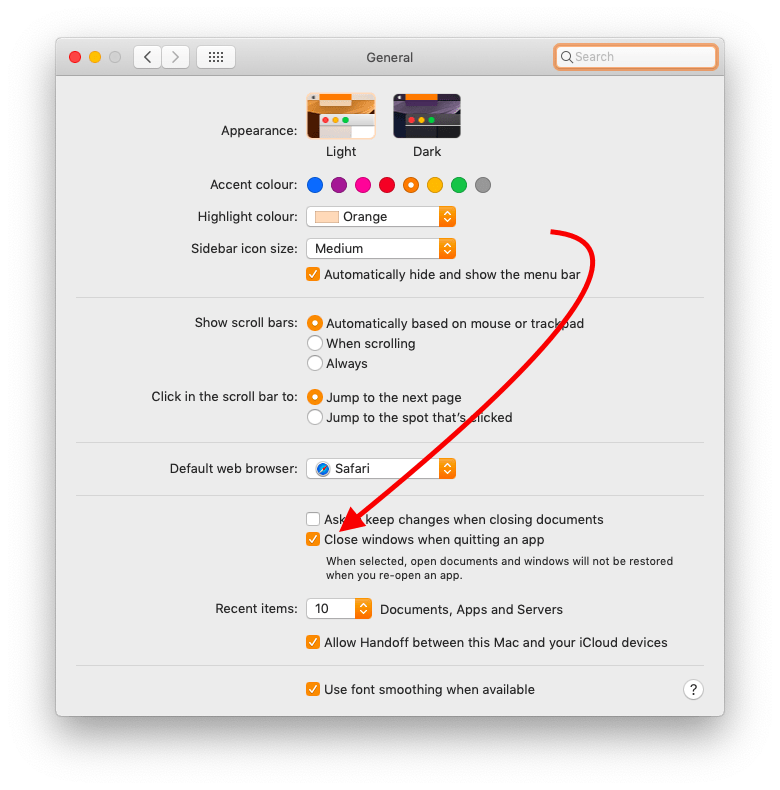
Yes, there’s a System Pref for that…
You can make it automatic
You can make this the default behavior on your Mac in System Preferences. Once this is enabled your Mac will remember all the windows you have open when you quit an application so they will be opened next time you launch it.
- Open System Preferences>General and uncheck Close windows when quitting an app.
Now you’ll never lose an open window while you work again.
And if after you have changed that preference you should ever wish to quit an application and forget what windows it has open, just press the Option key to see Quit and Close all Windows.
Hope this helps.
Please follow me on Twitter, or join me in the AppleHolic’s bar & grill and Apple Discussions groups on MeWe.