How to add captions to photos in iOS 14 (and iPad)
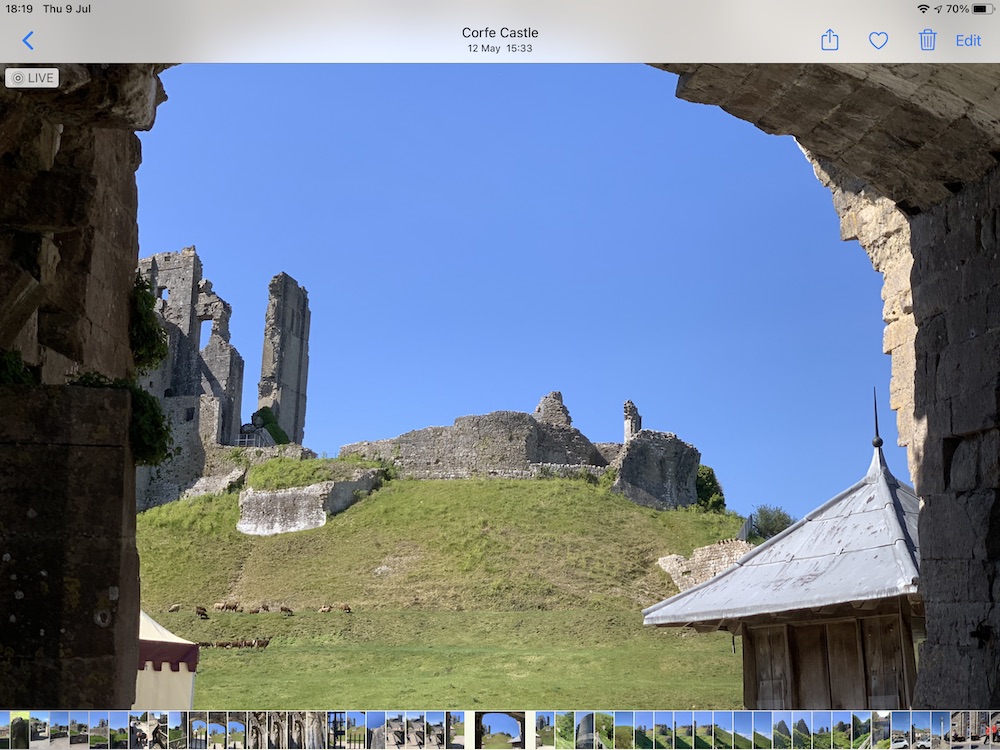
A striking location
Apple has made it much easier to add captions to your images in iOS 14 on iPad and iPhone.
How to caption photos in iOS 14 (and iPad)
The process of adding a caption has until now required use of third-party software, but this is no longer necessary in the upcoming operating systems. Now it is a platform-level feature that lets you caption your images from directly inside Photos.
Adding captions is so easy, just follow these steps:
- In Photos, find the image you wish to caption.
- Tap the image to view the photo in full screen on your iPhone or iPad.
- Swipe up on the image and you’ll see a new row appear, this says “Add a Caption”.
- Tap in the new Add a Caption field and write what you want to write about the image: “My favorite rose”, for example.
- Once you’re done, tap Enter.
Now that you have added a caption for that photograph the caption will be synced across all your devices, so long as iCloud Library is enabled. Open a Mac running macOS 11 Big Sur and you’ll also find the Description field in Photos has been rechristened as ‘Captions’.
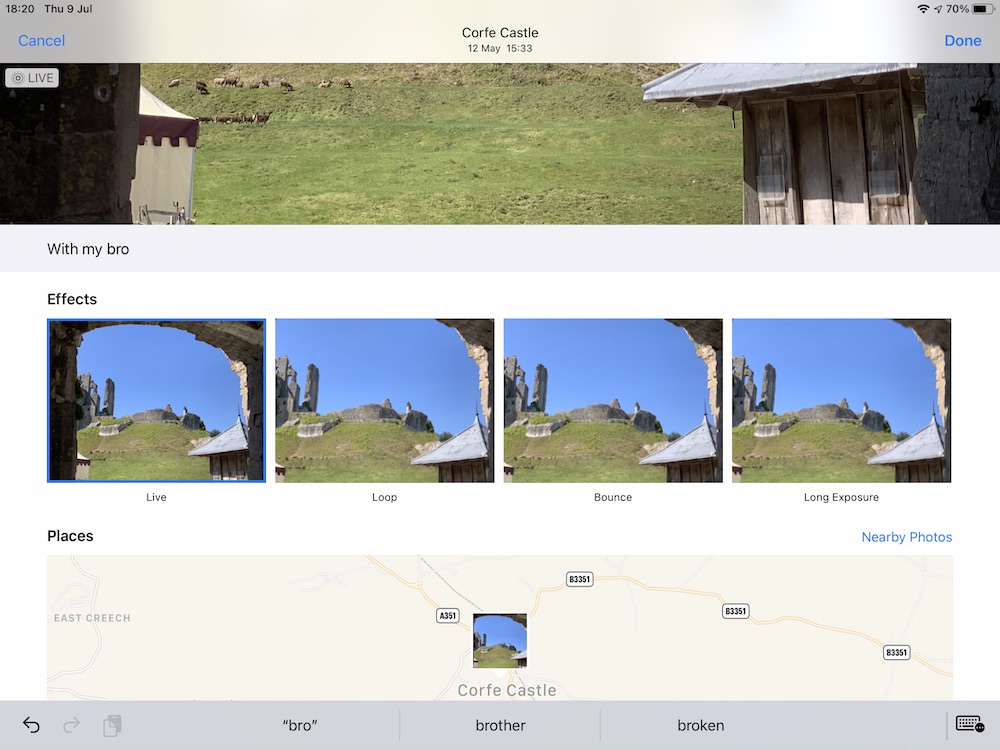
Captions on Photos
What can you do with Captions?
The captions aren’t just intended to help you write about and later recall people and moments, they also become searchable.
If you add a place-related caption you might note a location Photos doesn’t already know about, or you might have an image of a few people all of which you can name.
When you do, it should be much easier to find the photo you need in future, thanks to the Caption search.
I remain quite curious to discover if these captions might also export to third party services offering photo book or calendar printing, but I don’t know if this is the case just yet.
Please follow me on Twitter, or join me in the AppleHolic’s bar & grill and Apple Discussions groups on MeWe.