6 iOS Safari tips I think you’ll use a lot
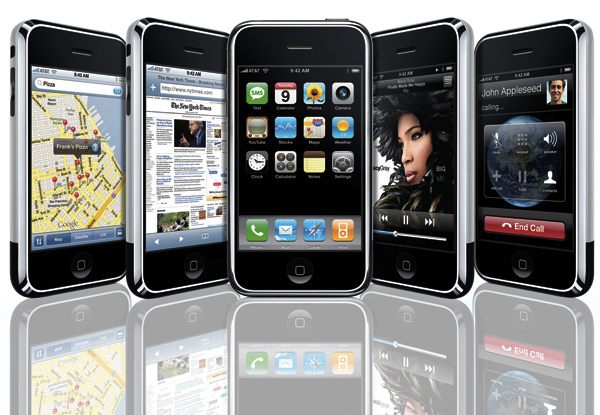
The iPhone that changed everything had its own built in full browser. This was new.
Apple launched the Safari browser way back in 2003 and it is now the default portal to access the Web on all its devices. The company even offered a Windows version of Safari between 2007-2012. That doesn’t mean everyone knows every trick in the Safari book, so here’s a few useful little tips I think you’ll use.
Who else recalls the excitement when Apple launched the ‘fastest browser on the Mac’?
Quick Reading List
When on a Web page, long press the Bookmark button and you’ll be given two choices: Bookmark the current site, or add it to Reading List. Faster than the Share icon!
Reading List – offline
You can automatically save Reading List items to read later offline. Just open Settings>Safari and in the Reading List section toggle ‘Automatically Save Offline’ and you’ll be able to read all your Reading List items whenever you want.
Open links in the background the easy way
iOS 11 will open links in a new background tab automatically. Open Settings>Safari and toggle Open Links to in the background. Boom.
Total tab control
Long press the tab button to and you can close all open tabs, that particular tab, open a new one, or even open a Private tab. (In the carousel view, a long press of the plus icon lets you quickly access all your Recently Closed tabs.)
Long press to save and share
Long press an image on a site and you can save it to your photos library, share it, open it in a new tab and more. Not every site supports this feature.
Cut the cruft
Long press the Reader button and you can set this to work by default on every site you visit. Long press the Reload button (by the address in the browser bar), and you can request the full desktop site, which is useful if you need to access something you can’t see in mobile view. You’ll also get to reload without content blockers here.
Got any useful Safari for iOS tips? Let us all know in comments below.
Below: The Beachboys sing their track, ‘Surfin’ Safari’. I’m not saying the names of the Apple browser and this track are at all connected, but given Steve Jobs’ love of decent music, I can’t help but think it. Meanwhile, this is how Don Melton’s secret Safari team described the naming of the software. (He also published a blog about the browser called… Surfin Safari, which now resolves to the WebKit blog).
https://youtu.be/VLXvATxHHiQ