3 ways to find your phone number on an iPhone

Here are three ways to find the phone number associated with your iPhone. This will likely come in most useful when you have moved to a new network and haven’t quite memorized your number yet, when you are using a burner SIM, or any other situation in which you just can’t recall it.
3 ways to find your phone number on an iPhone
The simplest way to find your number is to call another person or device and see what number shows up, but this may not always be available to you, particularly if you are using pay-as-you-go SIM.
Fortunately, there are other ways to get hold of this information.
The three ways are:
- Through Settings>Phone
- Check in the Contacts app
- Using your computer.
You can also find your number on Windows (see below).
If you enjoy keeping up with news about Apple, please subscribe to my human-curated daily news feed on Substack, you’ll never miss an important story.
All of these are simple to do and will find your number for you:
Through Settings>Phone (now Mobile Service)
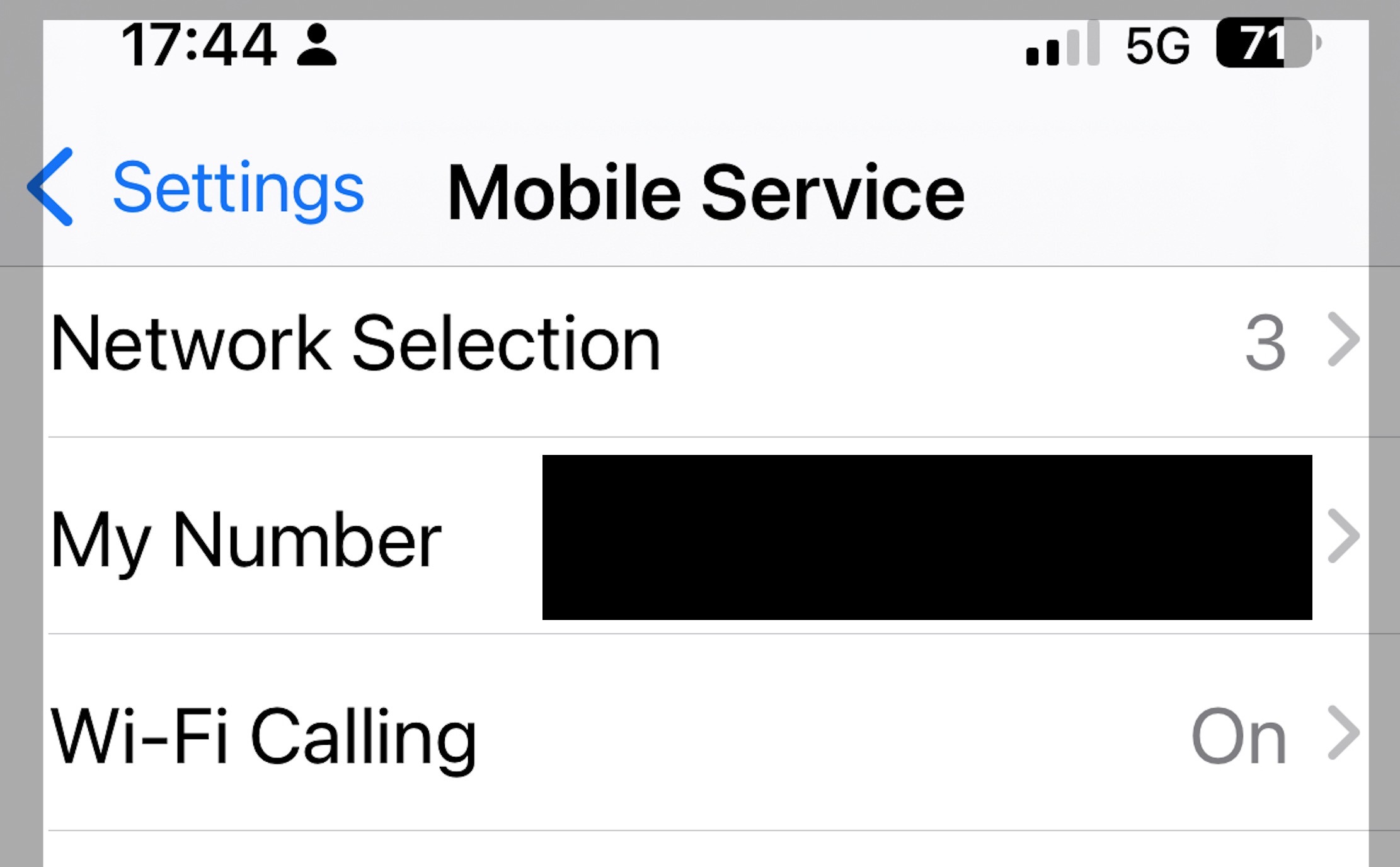
Open Settings, scroll down and tap on Phone (more recent iOS versions put this in the Mobile Service section), and you’ll see the handset number listed there under the ‘My Number’ item.
Check in the Contacts app
Open Contacts on your iPhone and then tap the top ‘My Card’ field, which shows your name. Tap this and you should see your number listed there – but this is not always effective if you’re using multiple devices/SIMS. In my experience it’s best to use the Phone Setting technique (above) to get the number for the device you are using.
Also read: 15+ iPhone phone call secrets you probably didn’t know
Using a Mac
Apple changed the way iPhones worked with iTunes on Macs when it introduced iOS 13, which introduced Music, Podcasts, and the TV app and rolled some of the application’s device management features into the Finder. You can still get your number using your Mac or PC, it’s just changed a little on Macs.
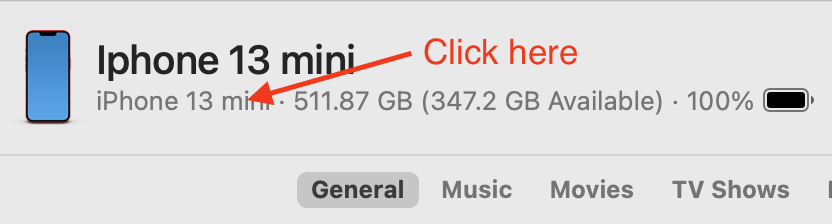
To find your number on a Mac:
- Connect your iPhone to your computer and click ‘Allow’. You may need to enter your password to give your Mac access to the device.
- Now open Finder, where you should see your iPhone listed in the sidebar. It’s in the Locations
- Select the iPhone and you should open up a General
- Look carefully at the top of the page, you’ll find the name of the device and under that you’ll see information about the device in small grey letters.
- Click those letters and you’ll see the serial number and UDID information replace what was there, click again and you’ll see the phone number, along with the IMEI, MEID and ICCID numbers.
Bonus: To find on a PC running Windows
On a PC, connect your iPhone to the computer, boot up iTunes, click the iPhone icon and you’ll find the number as an item in Summary view.
And that’s all there is to it.
While I’m certain this short piece of advice will only be intermittently useful, I had to figure it out the other day to get the number for an old device I had hanging around. For a few iPhone secrets that may come in more useful and you may not have come across before, look here.
You can follow me on social media! Join me on BlueSky, LinkedIn, Mastodon and subscribe to The Core.