How to get Siri to answer or decline an incoming call

She can take the call while dancing
Starting with iOS 14.5, you can ask Siri to pick up an incoming call for you, so you no longer need to tap the Answer button on iPhone or Apple Watch.
How to get Siri to answer or decline an incoming call
The feature works when you have the Announce Calls with Siri feature enabled.
This popular feature lets Siri speak the name of who is making a call to you in your headphones, so long as the caller is in your Contacts book. When a call comes in Siri will announce the name of that caller if they are known to you.
Siri also lets you immediately respond to incoming messages. Siri will speak an incoming message and listens so you can immediately dictate your reply.
You do need to be using a set of compatible headphones for these features to work.
What you need
- You’ll need an iPhone.
- You’ll also need headphones that support Siri, such as AirPods or some sets of Beats.
- iOS 14.5 or later.
- You don’t need, but can make use of Apple Watch.
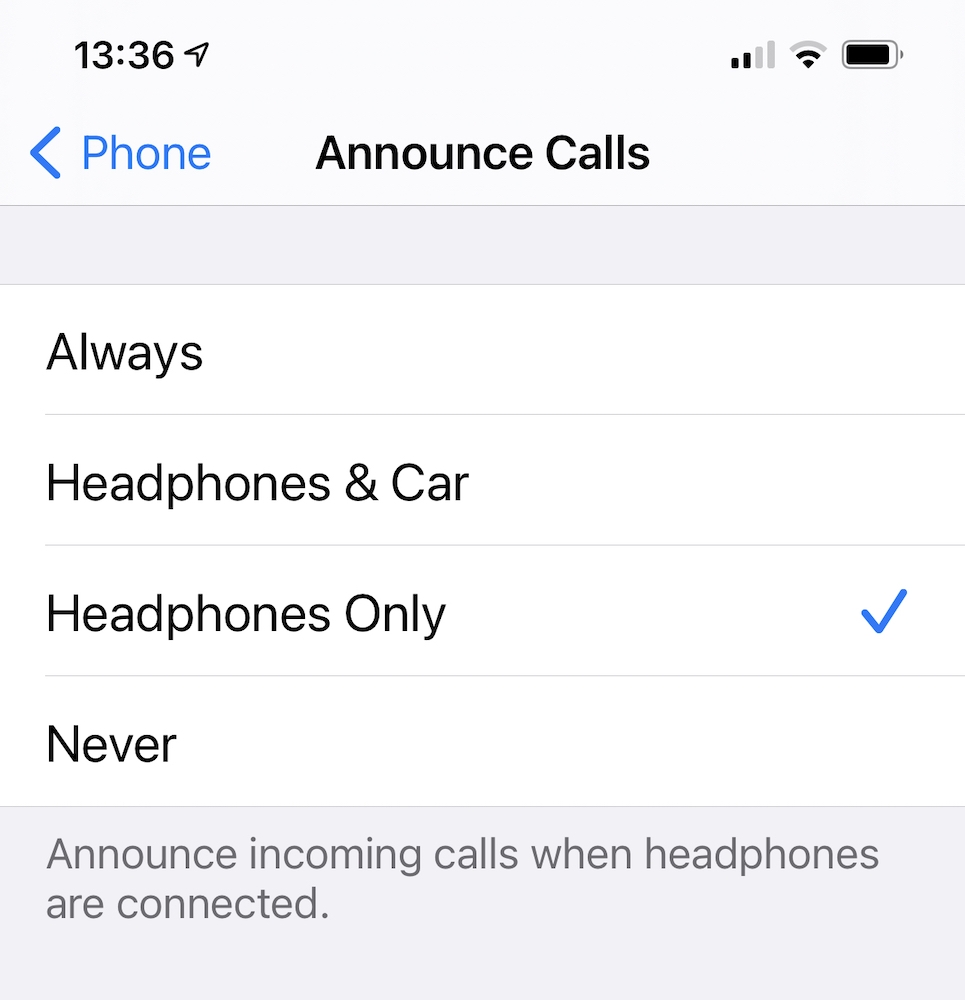
The secret is in this setting
How to enable Announce Calls with Siri
Open Settings>Phone
Under allow iPhone to Access select Announce Calls, which can be set to
- Always,
- Headphones & Car,
- Headphones Only,
- Never
You must also agree to ‘Allow Siri When Locked’ in Settings.
You set up the messages function in Settings>Siri>Announce Messages with Siri.
How it works
When a call comes in Siri will let you know who is calling. You can then choose to answer or reject the call. You don’t need to say ‘Hey Siri’, just say “answer”, or “decline”.
A typical call dialog follows:
Your friend Paola is calling you from a number you have listed against her name in your Contacts book. Siri will tell you Paola is calling. You want to talk to her, so you say “Answer” and the call will be piped through to your AirPods.
A message dialog might see Paola send you a message inviting you to her restaurant, Siri will read her invitation to you and you can immediately say “Paola I’d love to come, see you this evening.”
More call handling tips
Apple has packed iPhones with useful call handling features and tips, but they aren’t always immediately obvious to everyone. One thing that changed in iOS 14, for example, was the replacement of full-screen incoming call alerts with smaller notification bars. Some people liked the old way of doing things and this is how to turn it back.
You may also be interested in these 15+ call handling tips, which now include:
- How to always take calls using the speaker
- How to speak on speakerphone
- And how to switch to FaceTime mid-call
- How to answer calls automatically
- As well as how to manage calls you can’t take now (including in iOS 14 or later).
- How to change the response message.
- Learn how to make a conference call.
- How to dial extensions automatically.
- How to make Siri tell you who is calling.
- You can listen to your own music while you are on hold.
- How to prevent robo-calls.
- How to browse contacts during a call.
- Yes, you can use another app during a call.
- How to make your iPhone flash when a call comes in.
Please follow me on Twitter, or join me in the AppleHolic’s bar & grill and Apple Discussions groups on MeWe.