7+ HomePod tips everybody needs
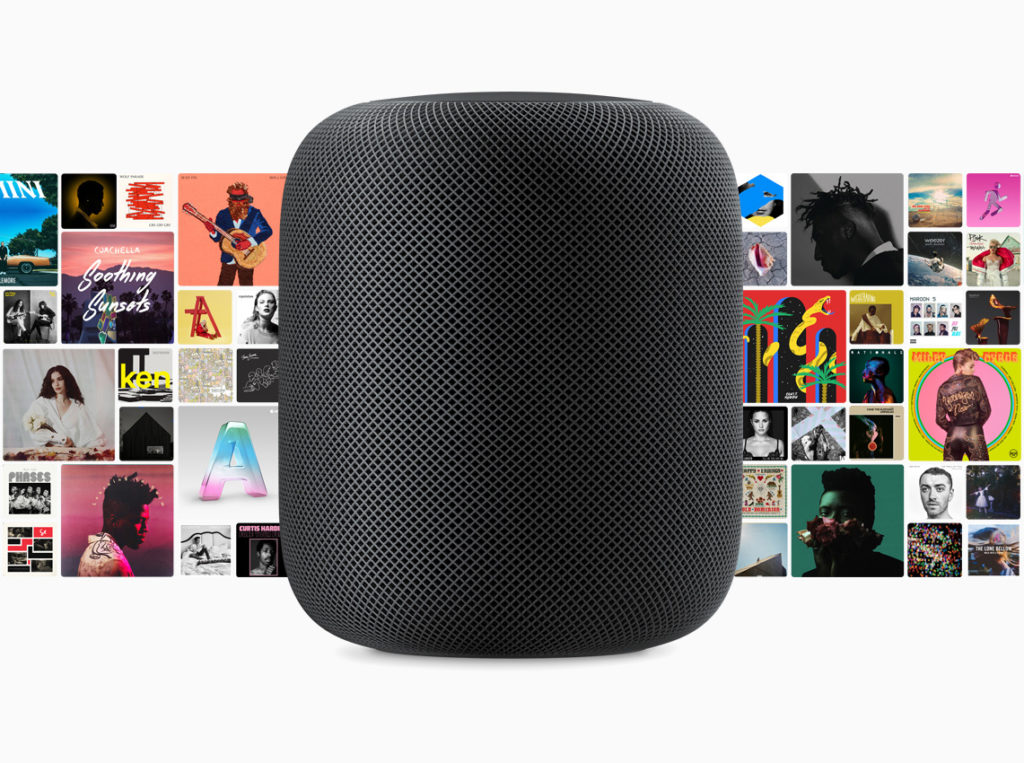
Was anyone else impressed at how few twinned stereo HomePod systems it took to fill the entire upper floor of WWDC with music?
I know I was, and while it would be fair to see a touch of ‘marketing to the converted’ on the part of Apple in choosing to use those devices, it’s also fair to note just how well they performed. Haters gonna hate, but HomePods are brilliant at what they do best: music playback.
5+ Hey Siri commands you can’t live without
- “Hey Siri, what song is this?”: I use this a lot. I also use “Add this song to my library”.
- “Hey Siri, tell me about this artist,”:This is such a useful command if you want to learn more about what you hear, particularly if you listen to those curated Apple Music/Beats collections.
- “Hey Siri, who is the drummer in this track?”: You can ask about more than the track. You can even ask it to Play the top song from January 1988.
- “Hey Siri, I like this track,”:Use this command each time Siri plays something you really like. As you teach it what you like it will get even better at playing music you’ll enjoy. (This works well with “Hey Siri, play more like this,” which will do exactly that.
- “Hey Siri, play something I like,”:This command will get your HomePod playing tracks from the personalized Apple Music station it puts together based on your preferences.
[Also see: 80 things Apple says you can ask Siri on HomePod.]

Keep it personal (to you)
Apple Music and the HomePod like to work together to deliver personalised playlists based on what it learns about you. However, when multiple people share one HomePod that is working with one Apple Music account, those personal preferences can get slightly skewed by what other people play. When sharing music listening session, you can stop HomePod gathering this information in the Home app on your iPhone.
- Open Home
- Tap Edit
- Choose HomePod
- In HomePod settings scroll down to the Use Listening History option and toggle it to off
- The toggle it on again next time you have complete control of the device.
Make a playlist
It is annoying that you can’t create a playlist on your HomePod, but you can add items to an existing one. So, if you create a playlist on your iPhone called ‘HomePod songs I liked’ you can in future ask HomePod to add specific songs it plays for you from any collection it uses to that playlist. “Hey Siri, add this song to my HomePod songs I liked playlist,” should do it.
[amazon_link asins=’B07C3G6JHW,B079C9K2B7,B074XLMYY5,B07C7YM3KM’ template=’ProductCarousel’ store=’9to5ma-20′ marketplace=’US’ link_id=’67e2a43e-73d3-11e8-b7de-ef22de2d5882′]
Private time
You can tell Siri not to listen to you. That’s useful if you’re a little security conscious and don’t want your devices listening to you all the time, or just want to stop people changing your tracks.
To stop Siri listening, just say: “Hey Siri, stop listening.” To bring it back, just tap the top of the HomePod and say “Hey Siri, start listening.” (You can also use the Home app on your iPhone, just tap the icon and open the Details page for the device and toggle the Siri Listen option off or on).
What’s the volume?
Ask Siri what the volume is, you can then ask it to raise the volume by percentages or increments up to 10 (maximum).
Quick conversions
If you are cooking and need to convert ingredients in a recipe, why not ask your HomePod to figure it out for you?
Make a call
You can’t initiate a call on HomePod, but you can use it once you begin a call on your iPhone. While on a call, press the switch audio source button and select HomePod, now you will use the devices speakers and microphone for the conversation.