7 iOS 11 Tweaks You May Have Missed
Even if we ignore ARKit, iOS 11 will offer a big bunch of new features – but what about the tiny improvements and hidden tweaks you may not have come across?
QR Code Scanning
You have to love the way Apple’s popped QR Code scanning inside iOS 11. How does it work? Open the Camera app, point it at a QR code, and prompt will pop up to show you the decoded text or action (usually a website or multimedia link) the QR code provides. Apple didn’t make a big deal about it but when it introduced the feature it was quite clearly looking to the widespread use of those codes across the emerging economies (where these codes are even used as airplane tickets). You can even use this feature to quickly connect to a router!
Handwritten emails
I’d like to like this feature more, but my handwriting sucks. You can handwrite your own emails in iOS 11: Just long-press on the display to get to the little black/grey control strip, then select Insert Drawing. Now you’ll find yourself on a new page where you can use the system-wide Markup tools (shapes, text, a virtual pen, pencil, and market) to handwrite your message, including cute pictures of cats, dogs, or lovely and romantic flowers (or whatever) to other people. It’s a nice touch of personalization all the same.
New devices the easy way
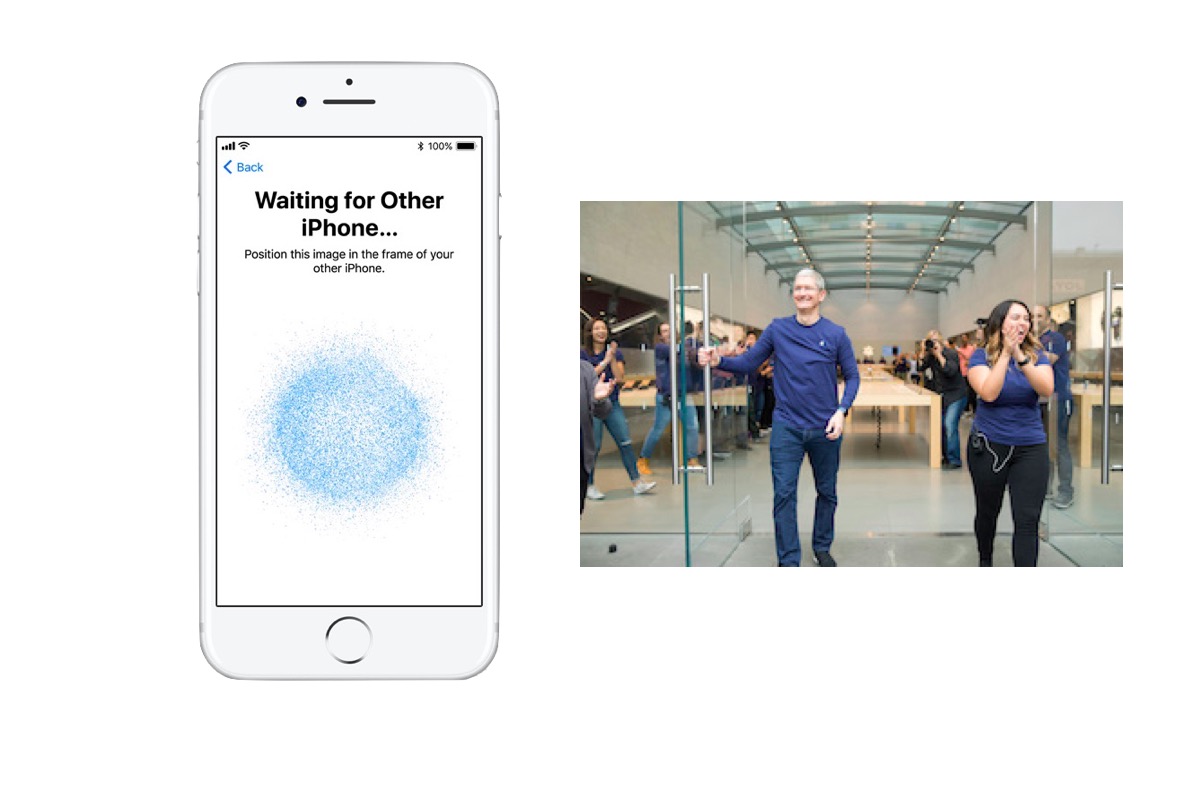
Got a new iPhone? Picked up a new Mac (such as this heavily discounted MacBook Air)? You’ll love the new Automatic Setup feature. Just hold your iPhone near your new system and follow the on-screen prompts to automatically set-up your new machine. All your personal iCloud data and iCloud Keychain passwords will be transferred and your Mac will be immediately ready to use. (So long as it is running High Sierra). The interface will seem familiar to anyone who has ever set-up an Apple Watch.
3D Safari
Tabbed browsing on an iOS device lets you keep an eye on loads of different websites, unfortunately skipping between those websites can be a little frustrating if you have fat fingers and poor eyesight. That’s why Apple’s move to make it possible to switch between tabs really quickly using 3D Touch is such a welcome relief, though it isn’t working yet.
What’s in a word?
Want to figure out what a word means? Open Safari and type define and then the word you want defined. The definition will automatically appear as the top suggestion. You’ll also be able to type measurements to get conversions, such as “15 feet in meters”.
Scan anywhere
I mentioned this in my guide to new Notes features the other day, but I’m really optimistic about the built-in scanner inside of the app: This is going to make it super-easy to gather invoices, business cards, expenses data, important notes, or even pictures the kids create.
As I explained:
“To scan a document: In a Note, tap the Plus sign in a circle and then choose Scan Documents in the menu that appears. Your camera view kicks in, point it at the document and align your camera so the item you want to scan is visible and highlighted by a yellow tint. Notes will automatically grab the image, using its automatic scanning feature. You can also choose to scan into grayscale mode. When you’re done hit Keep Scan and then Save. (You can even sign the document with your Apple Pencil this way).”
App Offloading
This is great. Got an app you don’t want to use at the moment that you’ve been keeping on your device because you don’t want to lose the data it contains? Now you can delete the app and keep the data. When you do this you’ll still see the app icon on your device, but this will be slightly greyed out to show it isn’t active. You’ll regain all the space the app took up, but lose no data. To use this feature open Settings>General>iPhone Storage. Wait a few moments for the iPhone to analyse itself and scroll down the page. You’ll come to a list of installed apps with how much space each one consumes. Found an app that’s using space that you don’t use enough to want to always keep installed? No worries: Tap the app name on the list and in the next screen choose ‘Offload App’.